

How does the Prepaid with orders function work in selling plans on subscription rules?
The Prepaid with orders function allows you to create a prepaid subscription setup where the customer pays upfront for multiple upcoming fulfillments, while each future fulfillment is still created as a separate order when it is time to ship.
This can be useful if you want customers to pay in advance for several deliveries, but you still want each upcoming fulfillment to appear as its own Shopify order instead of relying only on Shopify’s scheduled fulfillment flow.
Because this setup works by creating separate future orders, there are a few important setup steps you need to complete before adding products to this type of subscription rule.
1. Create a duplicate product in Shopify
Before you add a product to a subscription rule that uses Prepaid with orders, you should first create a copy of the product in Shopify.
This copied product should have a new price that already includes the value of all upcoming fulfillments the customer is paying for upfront.
For example, if your original product costs $20 and you want the customer to prepay for 3 deliveries, then the copied product should be priced at $60. You can calculate this price via this formula: (billing frequency / order frequency) x base price of the product.
This is important because Shopify will charge the customer based on the product price at checkout. The product used for the prepaid subscription rule therefore needs to represent the full prepaid amount.
You can create that by doing the following steps:
- Go to Shopify Admin → Products
2. Open the product you want to include in your subscription rule
3. Click duplicate
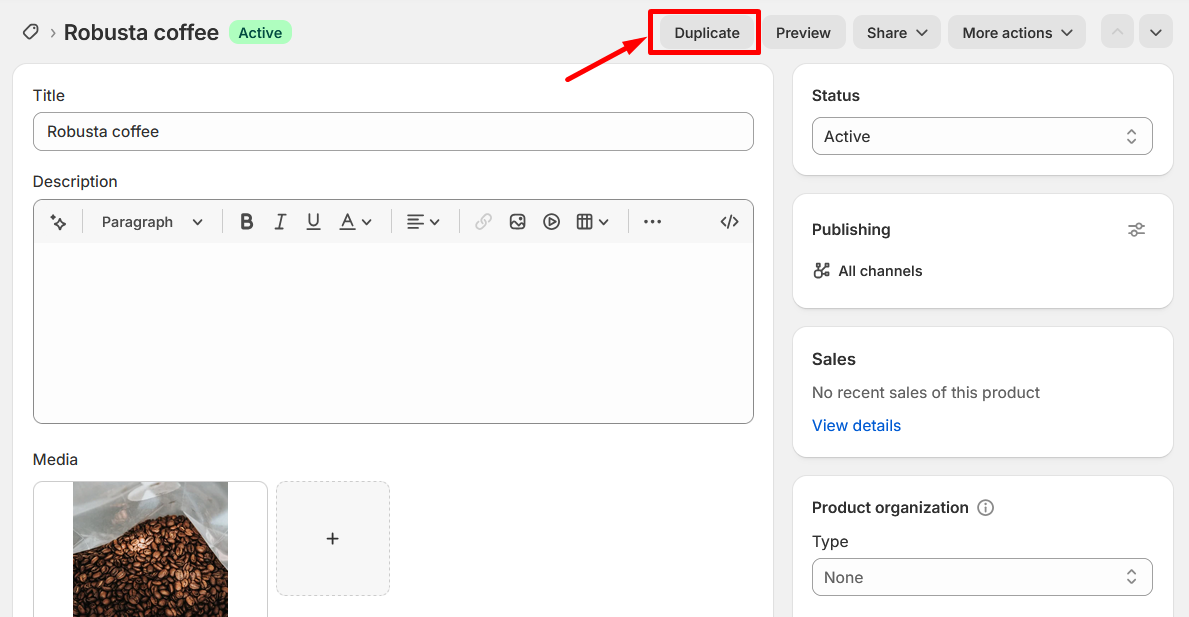
It is also suggested that you rename the copied product so that you will find it easier.
4. Change the product price to the total prepaid price
5. Save the copied product.
2. Create subscription rule
After you create the copied product in Shopify, you can create or edit the subscription rule in Seal Subscriptions.
- Go to Shopify Admin → Seal Subscriptions → Subscription rules
- Click on the create rule button
- Pick auto-charging subscription rule
- Configure your rule and add the previously created copied product to this subscription rule.
- When configuring the selling plan, make sure that you check ‘This is a prepaid selling plan’ and then check option “Create new orders with each fulfillment”
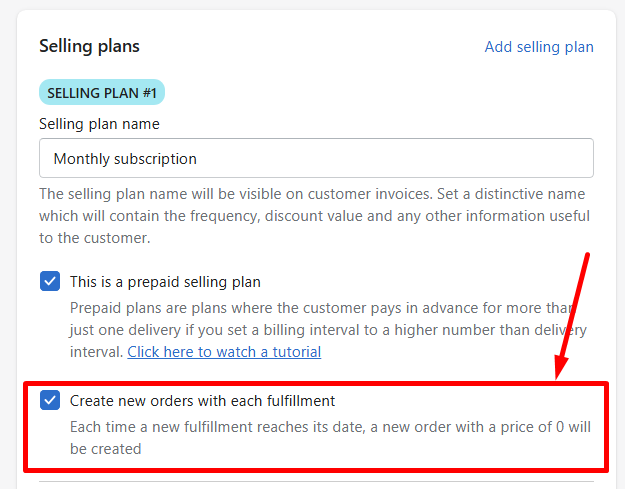
3. Create a new custom shipping profile
You should also create a new custom shipping profile in Shopify.
This is needed because the customer is paying upfront for multiple fulfillments, and the shipping price should usually reflect the total shipping cost for all included deliveries.
For example, if shipping costs $5 per delivery and the prepaid plan includes 3 deliveries, then the shipping cost for the prepaid product should be $15.
You can calculate the prepaid shipping price with this formula:
prepaid shipping price = shipping price per fulfillment x number of prepaid fulfillments
You can create the shipping profile in shopify admin:
- Go to Shopify Admin → Settings → Shipping and delivery
- Click on ‘Add custom profile’ button
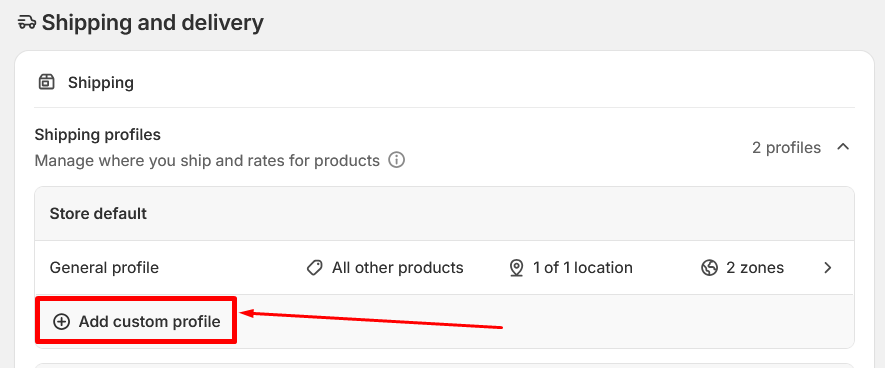
3. Add the copied prepaid product to this shipping profile.
4. Set the shipping rate based on the total number of fulfillments included in the prepaid plan.
5. Save the shipping profile
That's it! Seal Subscriptions will now create a new order with a price of 0 for each upcoming fulfillment.