

How do I set read-only permissions for my API key?
Go to Seal Subscriptions → Settings → General settings → API to view your API keys. Expand key you want to set read-only permissions on and click Edit.
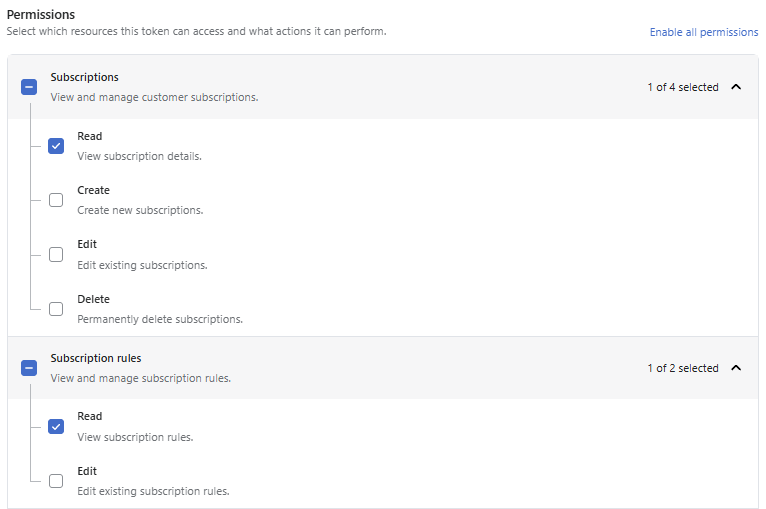
In the opened window, look for Permissions section. Expand each resource group and select Read for the resources you want the key to access. Leave all other permissions unchecked, as shown in the example below.
Save your changes. The API key will now provide read-only access to the permitted data.